
Reporting
DICOM Structured Reports and Formatted Report Templates
MODALIZER+ offers two ways to attach a report to a study, and it’s worth understanding the difference before you pick one:
- DICOM Structured Reporting (SR) – defines semantic reports that are both machine-readable and renderable for display. This is the format recommended by the DICOM standards committees, but you don’t control exactly how the PACS will render it visually.
- Formatted Report Templates – PDF reports built on the standard DICOM Encapsulated PDF class, with a unique template mechanism that auto-fills case data into your own document. Use this when preserving exact formatting – fonts, colors, logo, layout – matters to you.
See Template-based Reporting for the feature overview, or read on for configuration details.
Formatted Report Templates
Formatted Report Templates automate filling case attributes – patient name, ID, birth date, sex, study information and more – directly into a report. A template is an RTF document with placeholders that are filled in automatically as you follow the New Patient wizard. You can create your own templates and pick between them by procedure type.
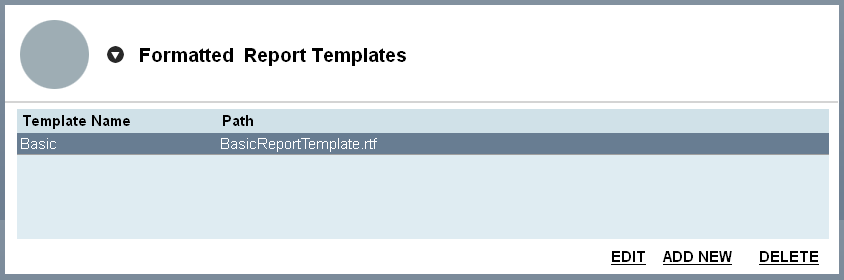
Placeholders are surrounded by $ and are automatically replaced with the matching attribute for every new report:
| Field | Placeholder |
|---|---|
| Patient Name | $PatientName$ |
| Patient ID | $PatientID$ |
| Patient Sex | $PatientSex$ |
| Patient Birth Date | $PatientBirthdate$ |
| Accession Number | $AccessionNumber$ |
| Study Date | $StudyDate$ |
| Study Time | $StudyTime$ |
| Modality | $Modality$ |
| Requested Procedure Description | $RequestedProcedureDescription$ |
| Scheduled Procedure Step Description | $ScheduledProcedureStepDescription$ |
| Station Name | $StationName$ |
| Referring Physician’s Name | $ReferringPhysiciansName$ |
See Formatted Report Template configuration to add, edit or delete templates, including adding your logo and editing the header/footer.
DICOM Structured Reports (DICOM SR)
To create a DICOM SR, type directly into the report text panel on the Acquisition screen, then select the “DICOM SR” option under “Create report as” on the Convert to DICOM screen. The resulting SR file is added to the destination folder automatically as a separate series, and can be loaded into the DICOM Viewer for display.
← Previous: Working with Studies | Next: Settings & Configuration →
DICOM is the registered trademark of the National Electrical Manufacturers Association for its standards publications relating to digital communications of medical information.