
DICOM Editor
A built-in DICOM Q/A workstation for editing DICOM tags
Beyond viewing, MODALIZER+ doubles as a full DICOM Q/A workstation. The DICOM Editor lets you inspect and edit any data element in a DICOM file – at the Instance, Series, or Study level – directly from the DICOM Viewer, with every change tracked and reviewable before it’s applied.
Entering Edit Mode
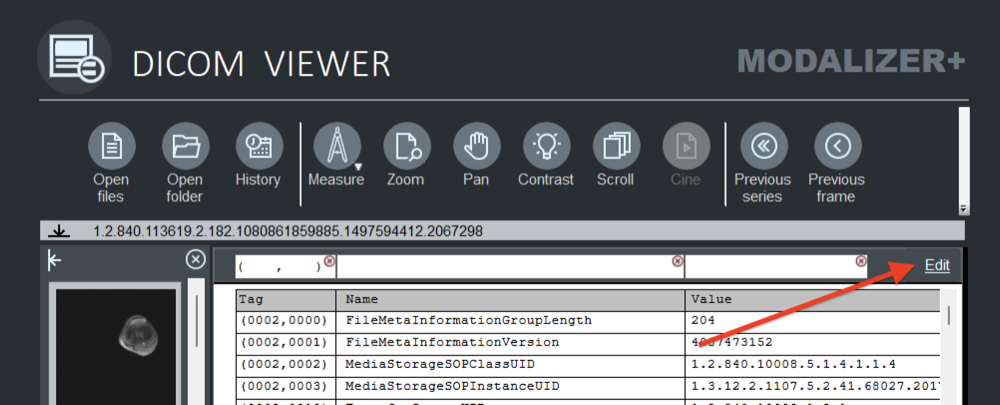
Display the DICOM header first – right-click any image and select “Show header”, or press Ctrl+H – then click the Edit button at the top right of the image panel to switch the header view into edit mode.
IHE IOCM Compliance
MODALIZER+ conforms to the IHE IOCM (Imaging Object Change Management) integration profile: by default, edits are saved as new instances in a new series, with a Key Object Selection (KOS) document generated to record what changed and why. If you’d rather not create new instances and KOS objects, check the Overwrite checkbox when closing the study (see Completing the Edit below) to write changes directly to the original DICOM objects instead – MODALIZER+ will ask you to confirm, since this isn’t recommended.
Entering edit mode generates a new DICOM instance from the original: a new series is created, and a Referenced Instance Sequence tag (0008,114A) links back to the original series/instance so the change history stays traceable.
What You Can Edit
- Add data elements and sequence data elements
- Add sequence items
- Add, edit, or delete data elements inside a sequence item
- Duplicate sequence items
- Remove data elements or entire sequence items
- Edit the value of any existing data element
Note: File Meta Header data elements (group 0002) can’t be edited, since they aren’t part of the DICOM object itself.
The Right-Click Context Menu
Right-click anywhere in the DICOM header view for a context menu with:
- Edit tag – modify a data element’s value
- New tag – add a data element
- Delete tag – remove a data element
- Show deleted – display removed elements, highlighted in red, so you can see exactly what’s been taken out before committing
Editing a Data Element
Double-click any data element to open its edit form. Update the value, then choose the scope for the change – apply it to just this instance, to the entire series, or to the entire study.
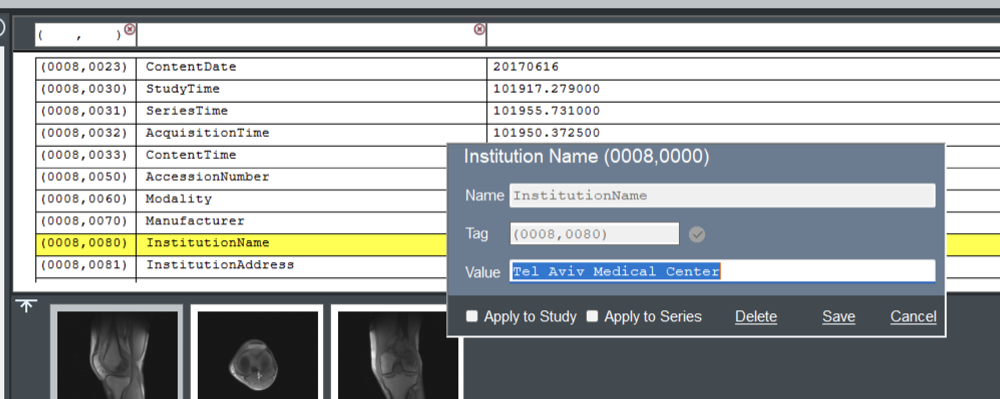
You can also copy an entire sequence, delete it, or add new data elements to it from the same view.
Reviewing Edits Before They’re Applied
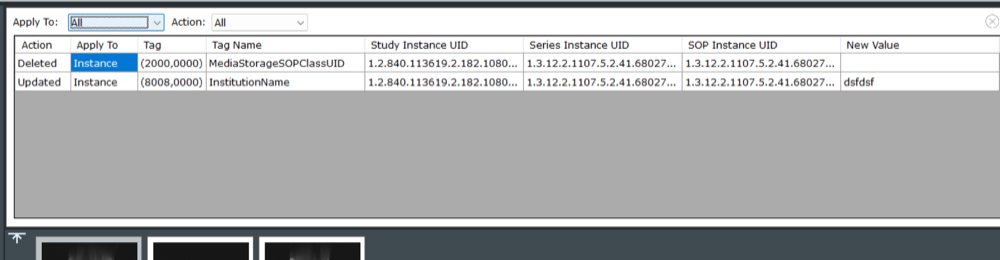
Nothing is written until the operation completes. Click Review at the top right of the header view to see every pending edit – action, scope, tag, and new value – before it’s committed. Use the action and level filters to narrow the review down to what you actually want to check, and modify or discard individual edits directly from this screen.
Completing the Edit
Close the study, or click Next/Back, to finish. If there are unsaved edited instances, MODALIZER+ prompts you to choose what to do with them before continuing:
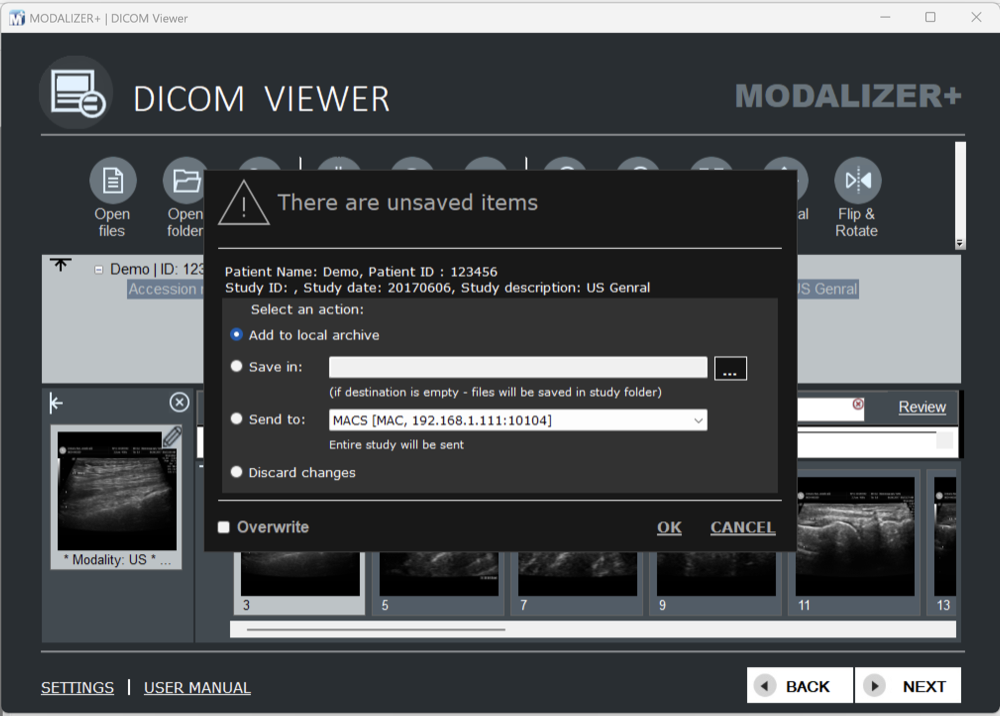
- Add to local archive – stores the new instances in the Local Archive. Only available if “Use local archive” is enabled in Settings; if the study is already archived, only the new edited instances are added.
- Save in – writes the new instances to a folder you choose. Leave the destination empty to save them in the study’s own folder.
- Send to – sends the entire study, or just the new instances, to a configured Storage Server. If the study was originally retrieved from a PACS, that source PACS is pre-selected.
- Discard changes – drops the edit entirely without saving anything.
Whichever of those four you choose, MODALIZER+ stays on the IHE IOCM-compliant path by default: a Key Object Selection (KOS) document is created and saved as a new series, preserving a clear record of every change made to the original study.
The Overwrite Checkbox
Check Overwrite at the bottom of the dialog to skip the IHE IOCM workflow entirely: changes are written directly to the original DICOM instances instead of new ones being created with references back to the originals. Since this discards the original data and leaves no change record, MODALIZER+ shows a confirmation warning before proceeding:
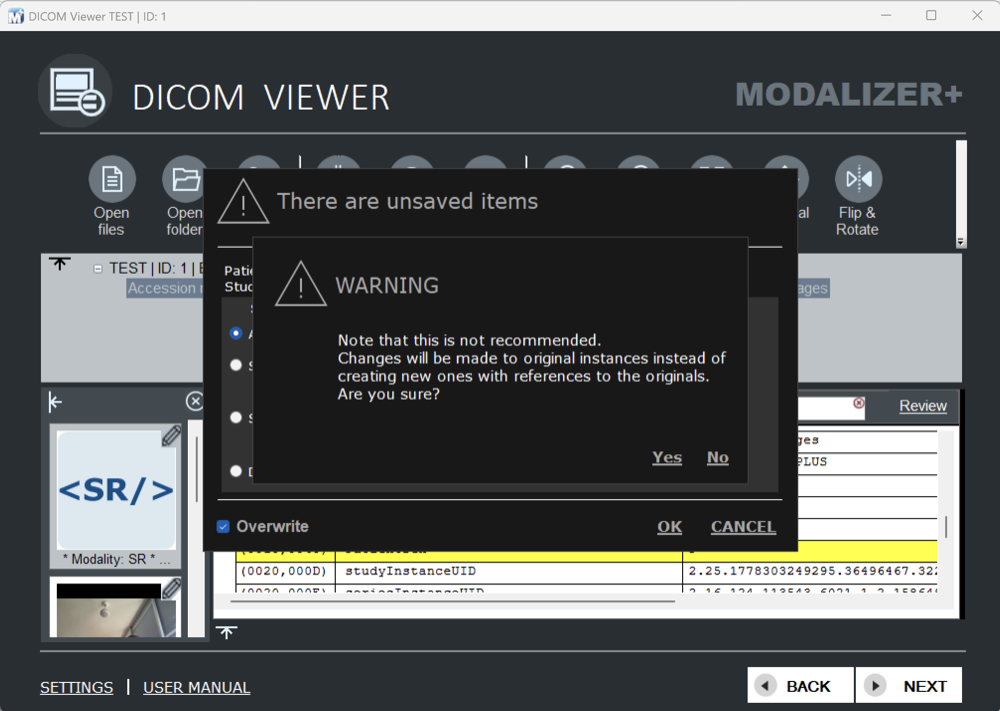
Click Yes to confirm the overwrite, or No to go back and choose a non-destructive option instead.
← Previous: The DICOM Viewer | Next: Working with Studies →
DICOM is the registered trademark of the National Electrical Manufacturers Association for its standards publications relating to digital communications of medical information.